WooCommerce 插件
1. 概述
GLODIPAY WooCommerce 插件将 GLODIPAY 支付网关集成到 WooCommerce,使商户能够通过统一平台接受信用卡/借记卡付款。
支持的支付方式:
- Visa / Mastercard / JCB / Amex / Diners / Maestro / Discover
结账兼容性:
- WooCommerce 经典结账 (Classic Checkout)
- WooCommerce 区块结账 (Block Checkout / Gutenberg)
2. 系统要求
| 要求 | 最低版本 |
|---|---|
| WordPress | 5.8+ |
| WooCommerce | 7.0+ |
| PHP | 7.4+ |
| OpenSSL | 必需 |
OpenSSL 是插件用于签署支付请求和验证 Webhook 真实性的安全库。大多数托管服务商(cPanel、WP Engine、Cloudways、SiteGround 等)已默认预装,无需额外操作。验证方法:WordPress Admin → Tools → Site Health → Info → Server,查找 OpenSSL 条目。
接收 Webhook 的服务器要求:
- 商户网站必须可从互联网公开访问
- 必须使用 HTTPS
- Webhook 端点
/?wc-api=glodipay_webhook不得有 IP/地区封锁
3. 安装
前置条件
在安装或更新任何插件之前,请务必备份您的网站。
步骤 1:下载插件
联系 GLODIPAY 获取插件 ZIP 文件。
步骤 2:登录 WordPress 后台
访问 https://yoursite.com/wp-admin
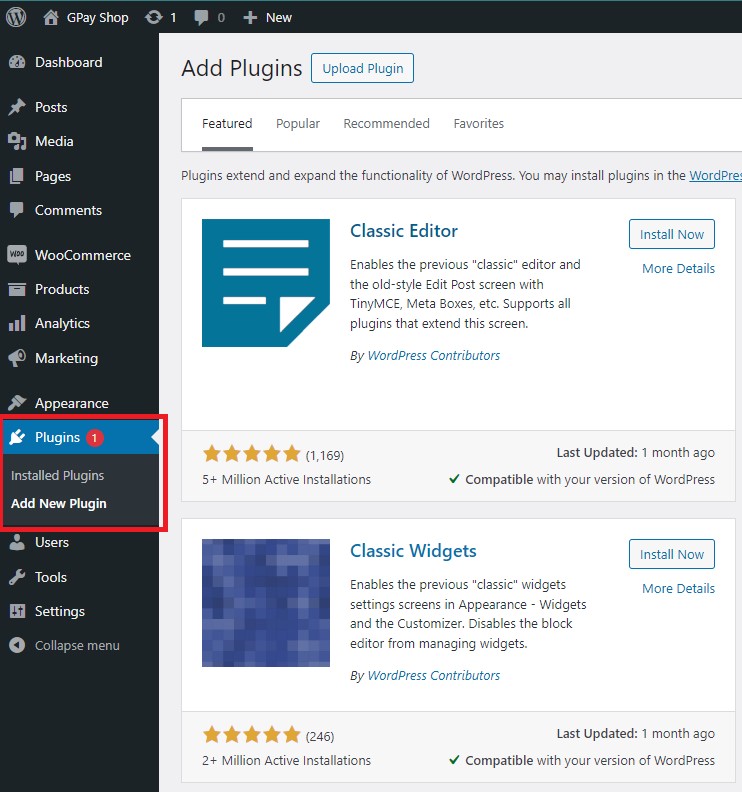
步骤 3:进入添加插件页面
Plugins → Add New Plugin
步骤 4:上传插件
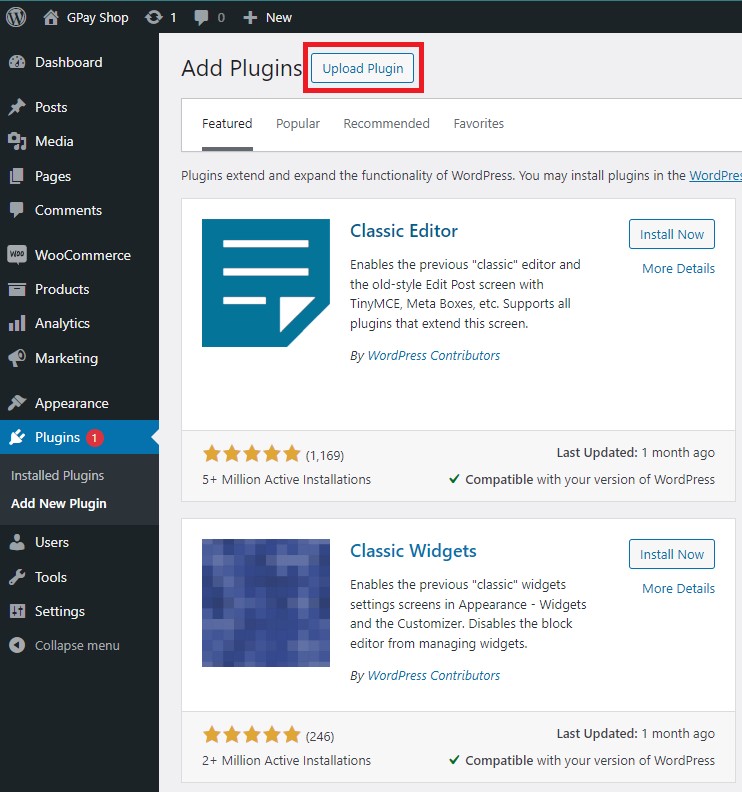
点击添加插件页面顶部的 "Upload Plugin"。
步骤 5:选择 ZIP 文件
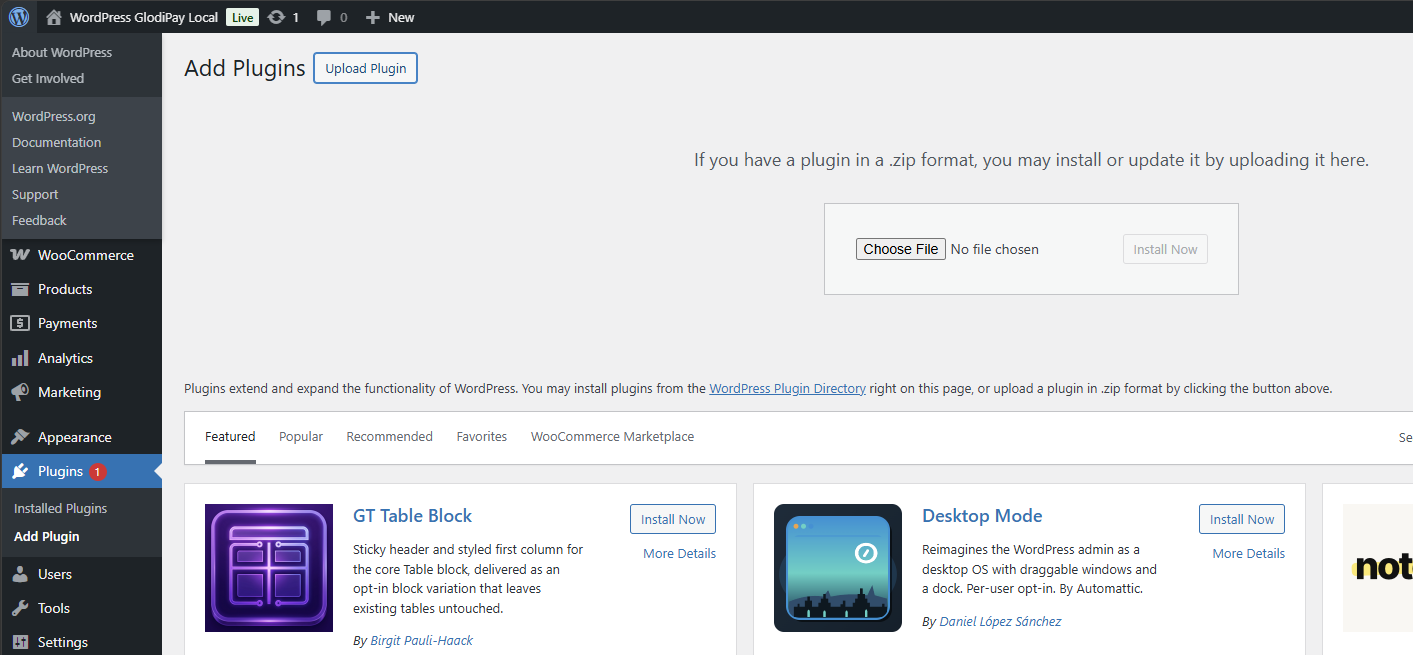
选择从 GLODIPAY 获取的 ZIP 文件。
步骤 6:安装
选择 ZIP 文件后,点击 "Install Now" 继续。
WordPress 将从上传的 ZIP 文件安装插件。
步骤 7:激活
安装完成后,点击 "Activate Plugin"。
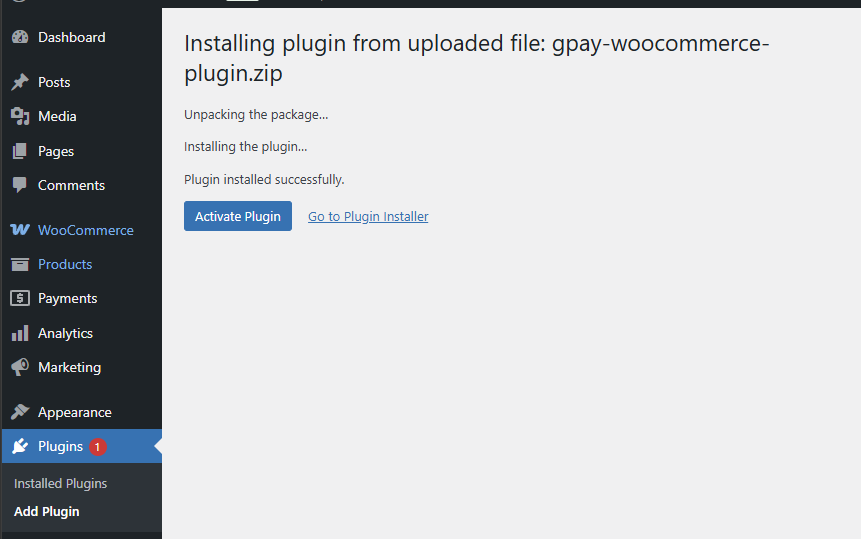
或从 Plugins → Installed Plugins → GLODIPAY Payment Gateway → Activate 激活。
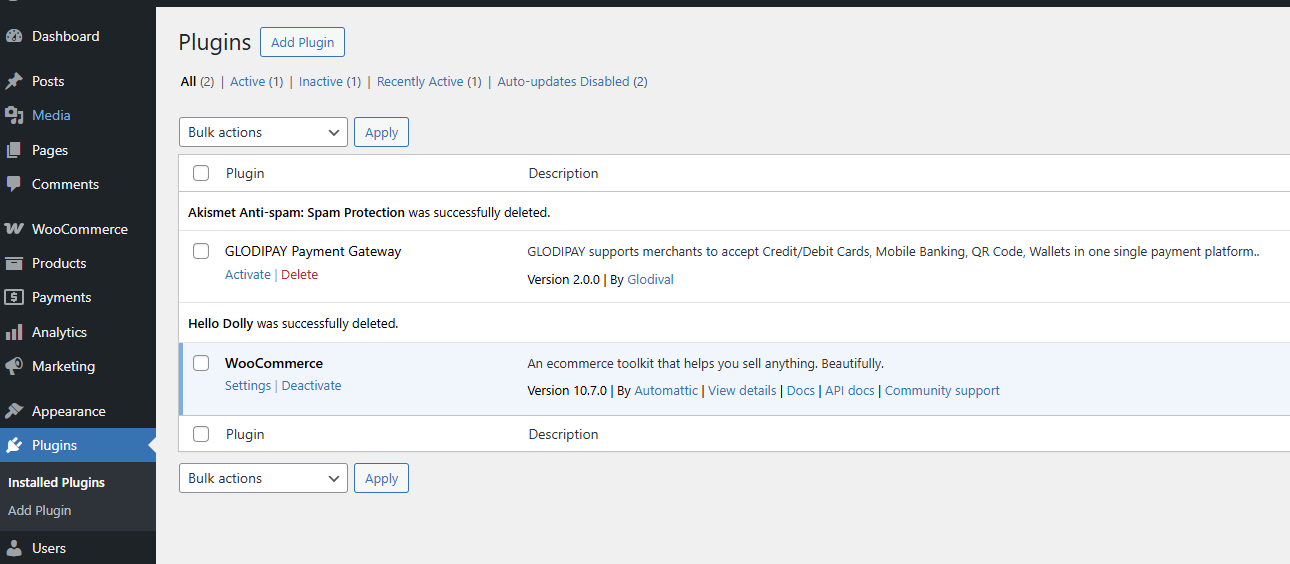
步骤 8:验证
访问您的结账页面,确认 GLODIPAY 支付选项已出现。
4. 配置
步骤 1:访问 GLODIPAY Merchant
- 登录 GLODIPAY Merchant 的商户账户
- 确保已完成邮箱验证和 KYB 认证
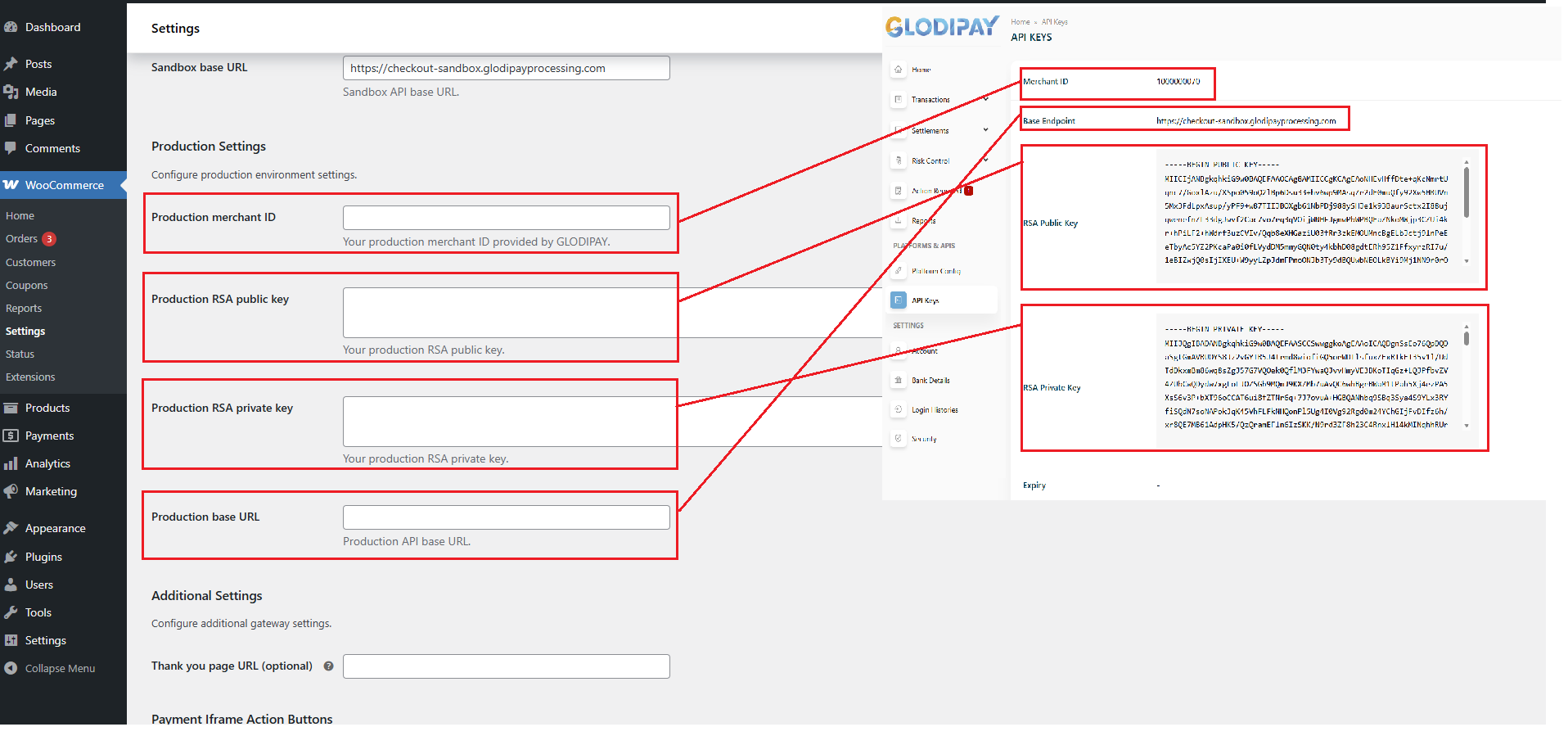
- 在左侧菜单中进入 API Keys
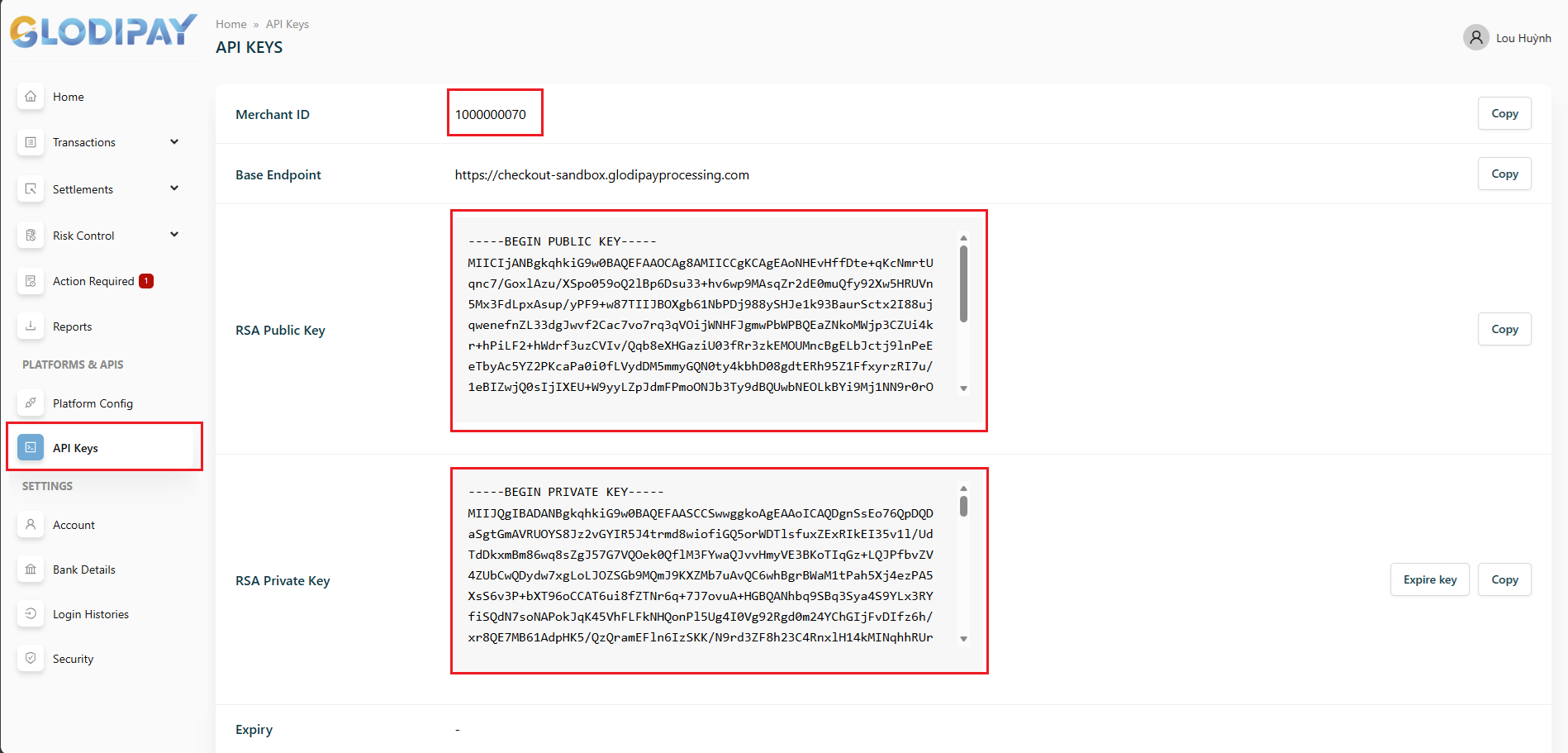
步骤 2:获取 API Keys
在 API Keys 页面复制以下内容:
| 密钥 | 说明 |
|---|---|
| Merchant ID | 唯一商户标识符 |
| Base Endpoint | API 基础 URL(沙盒或生产环境) |
| RSA Public Key | 用于验证 Webhook 签名 |
| RSA Private Key | 用于签署支付请求 |
| Expiration Date | 密钥到期日期 |
步骤 3:在 WordPress 中配置插件
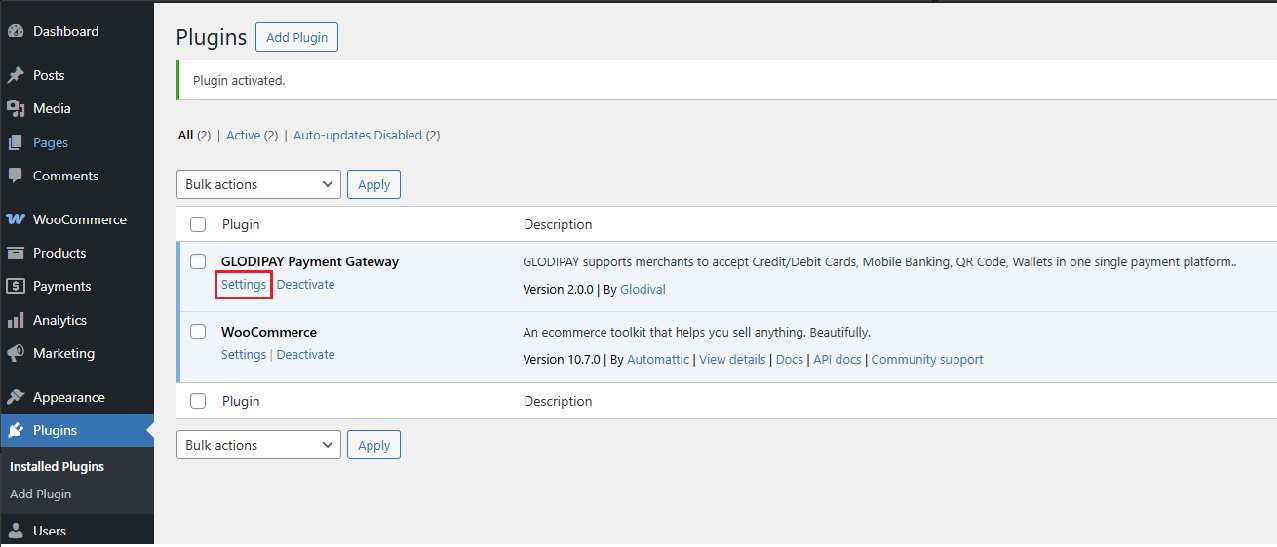
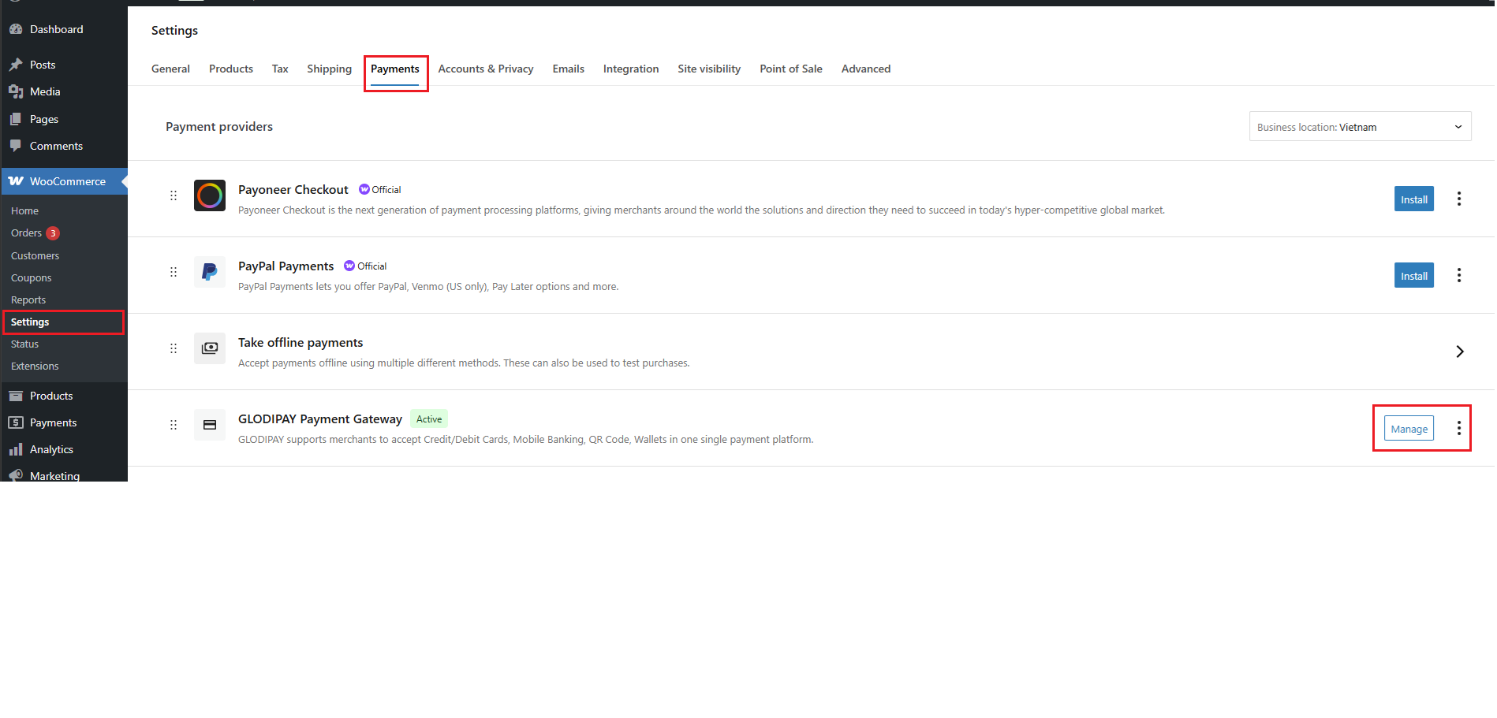
通过以下任一方式访问:
- 方式 1: Plugins → GLODIPAY Payment Gateway → Settings
- 方式 2: WooCommerce → Settings → Payments → GLODIPAY Payment Gateway → Manage
4.1 基本设置
| 设置 | 说明 | 默认值 |
|---|---|---|
| Enable/Disable | 激活支付网关 | Enabled |
| Sandbox Mode | 在沙盒(测试)和生产(正式)环境间切换 | Disabled |
| Thank You Page URL | 支付后的自定义跳转 URL。留空使用 WooCommerce 默认页面 | (空) |
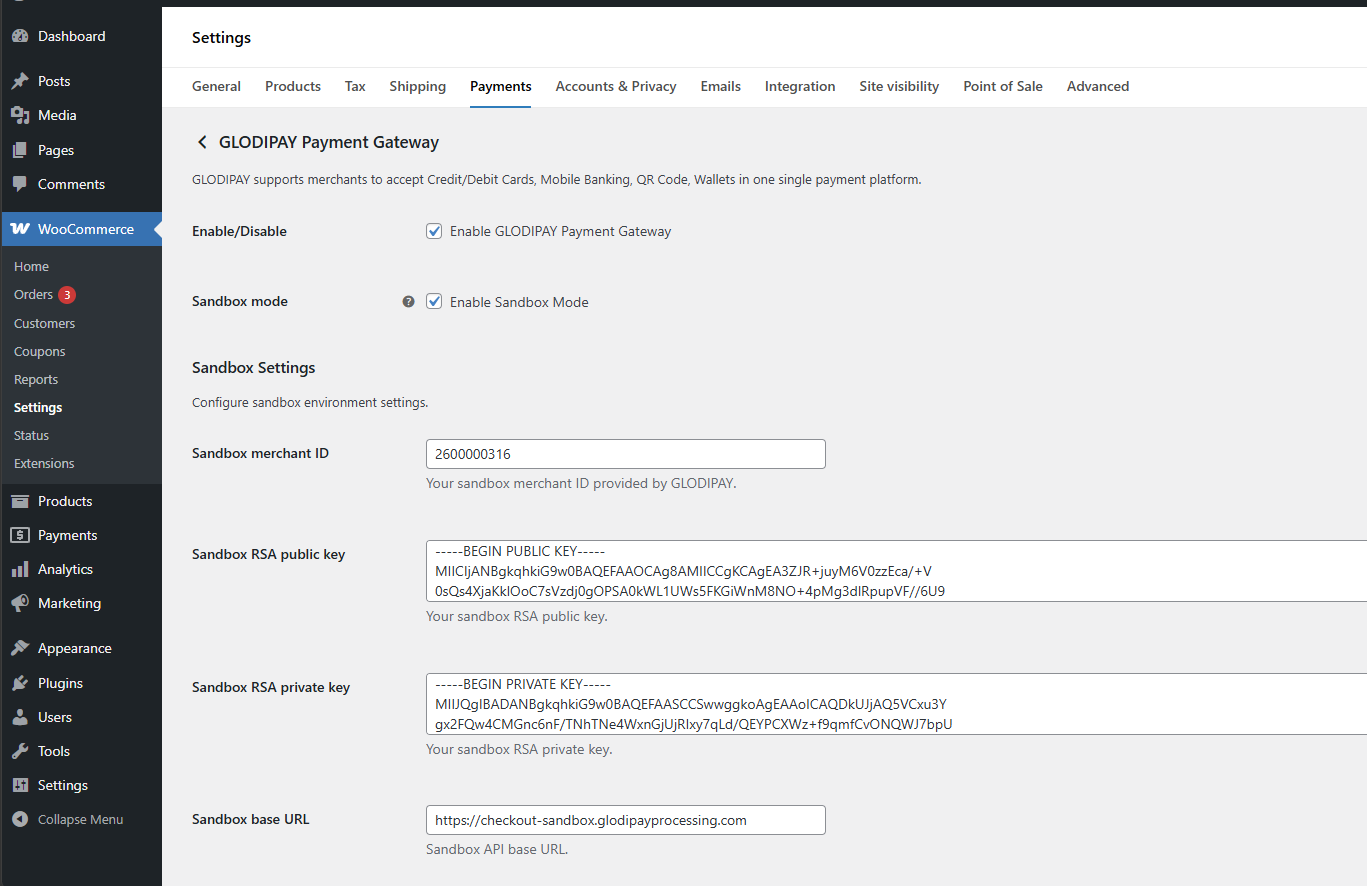
重要: 在切换到生产环境之前,请务必在沙盒模式下进行测试。
4.2 API Keys
沙盒设置
| 字段 | 说明 |
|---|---|
| Sandbox Merchant ID | 测试环境的商户 ID |
| Sandbox RSA Public Key | 沙盒环境的公钥 |
| Sandbox RSA Private Key | 沙盒环境的私钥 |
| Sandbox Base URL | 默认:https://checkout-sandbox.glodipayprocessing.com |
生产设置
| 字段 | 说明 |
|---|---|
| Production Merchant ID | 正式环境的商户 ID |
| Production RSA Public Key | 生产环境的公钥 |
| Production RSA Private Key | 生产环境的私钥 |
| Production Base URL | 由 GLODIPAY 提供 |
4.3 支付 Iframe 操作按钮
自定义支付浮层上显示的操作按钮。
刷新按钮
| 字段 | 说明 | 默认值 |
|---|---|---|
| Show Refresh Button | 在 iframe 上显示刷新按钮 | Yes |
| Refresh Button Text | 按钮标签文本 | Refresh |
| Refresh Button Color | 按钮背景颜色(十六进制) | #0073aa |
取消按钮
| 字段 | 说明 | 默认值 |
|---|---|---|
| Show Cancel Button | 在 iframe 上显示取消按钮 | Yes |
| Cancel Button Text | 按钮标签文本 | Cancel |
| Cancel Button Color | 按钮背景颜色(十六进制) | #dc3232 |
4.4 调试设置
| 设置 | 说明 | 默认值 |
|---|---|---|
| Enable Debug Mode | 将详细支付信息记录到 WooCommerce Logger | No |
| Block Checkout Debug | 为 Block Checkout 问题记录额外日志 | No |
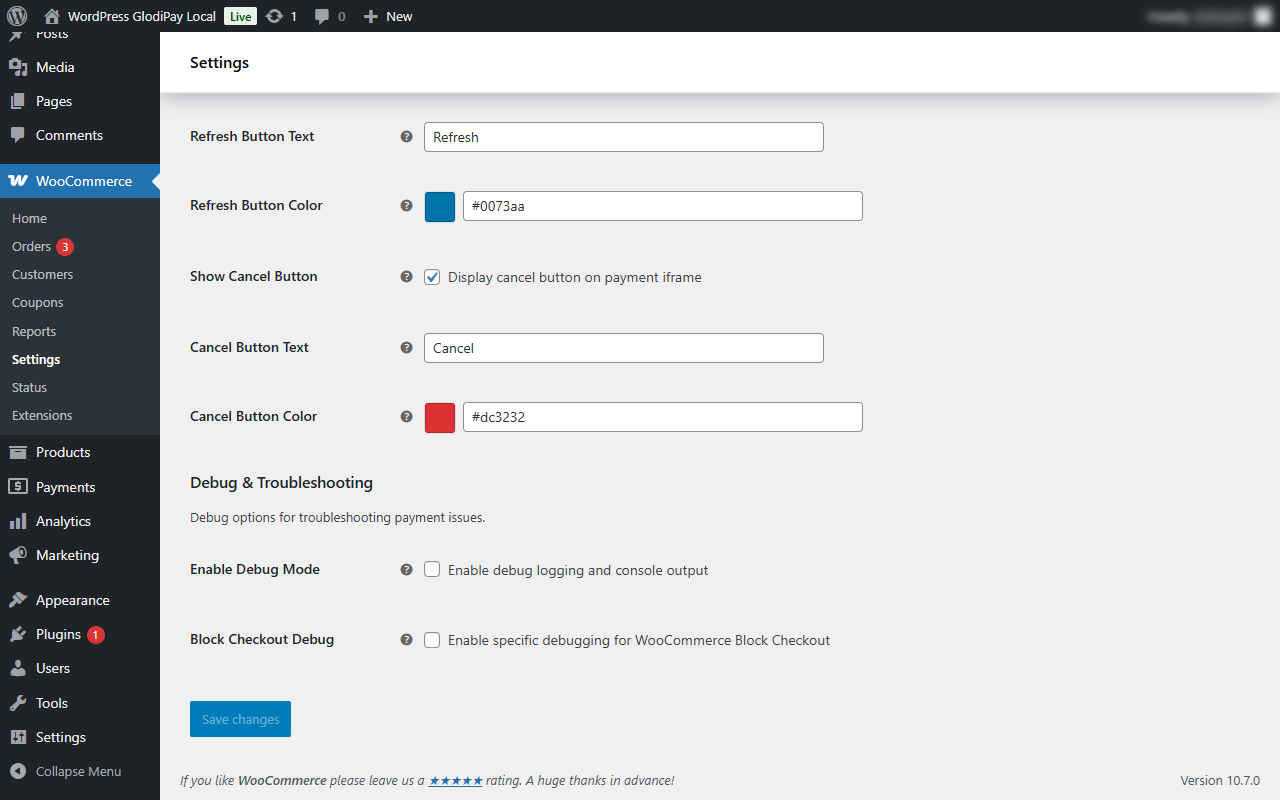
注意: 仅在排查问题时启用调试模式。切换到生产环境前请关闭。
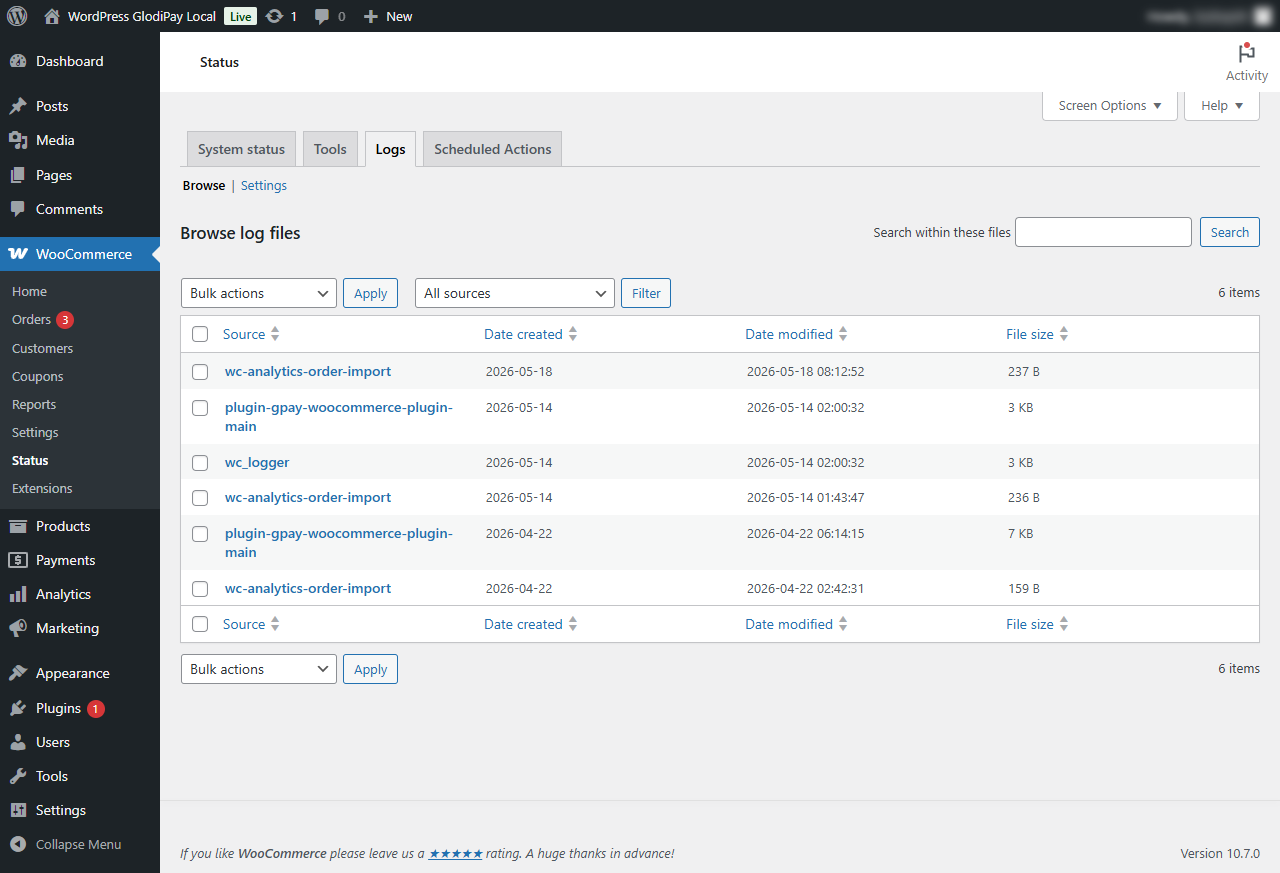
调试模式开启时,日志位于: WooCommerce → Status → Logs
5. 支付流程
5.1 经典结账流程
客户填写结账表单
        ↓
选择 GLODIPAY 作为支付方式
        ↓
点击 "Place Order"
        ↓
WooCommerce 创建订单(状态:pending)
        ↓
插件联系 GLODIPAY Gateway 创建支付
        ↓
支付表单在页面底部浮层中加载
        ↓
客户在浮层内完成支付
        ↓
GLODIPAY 将支付结果通知插件
        ↓
插件更新订单状态
        ↓
客户跳转到确认页面 → 感谢页面
5.2 区块结账流程 (Gutenberg)
当结账页面使用 WooCommerce Blocks (Gutenberg 编辑器) 构建时适用:
客户填写结账表单
        ↓
选择 GLODIPAY 作为支付方式
        ↓
点击 "Place Order"
        ↓
插件联系 GLODIPAY Gateway 创建支付
        ↓
支付表单在页面底部浮层中加载
        ↓
(以下与经典结账相同)
5.3 支付 Iframe 浮层
支付发起后,支付面板从屏幕底部滑出,包含:
- 标题: "Complete Your Payment"
- 刷新按钮 — 重新加载支付表单(可配置)
- 取消按钮 — 取消支付并重新加载页面(可配置)
- 警告信息: "Transaction takes a few seconds to process. Don't close the page."
- 支付表单 — 嵌入的 GLODIPAY 支付表单
如果客户意外关闭或刷新页面,支付面板将自动重新出现。
5.4 发送给 GLODIPAY 的信息
发起支付时,插件自动从 WooCommerce 订单中收集并发送以下信息:
- 订单详情(参考编号、金额、币种)
- 客户账单信息(姓名、邮箱、电话、地址)
- 客户配送信息(如与账单地址不同)
- 支付返回和通知 URL
- 网站 Logo 和客户 IP 地址
无需人工操作 — 插件自动处理。
6. 确认页面
在浮层内完成支付后,客户将跳转到显示交易结果的确认页面。
确认页面显示内容
- 交易编号
- 使用的支付方式
- 交易状态
状态轮询
如果支付结果尚未返回:
- 页面每隔 5 秒自动刷新
- 最多 10 次重试
- 10 次后仍无确认结果 → 客户跳转到感谢页面
如果支付成功:
- 出现带有 30 秒倒计时的"Continue"按钮
- 倒计时结束后自动跳转到感谢页面
感谢页面
客户将跳转到:
- 插件设置中 Thank You Page URL 配置的自定义 URL(如已配置)
- 否则,跳转到 WooCommerce 默认订单确认页面
状态颜色
| 状态 | 颜色 |
|---|---|
successful | 绿色 |
failed | 红色 |
error | 红色 |
under_review | 橙色 |
7. Webhook 集成
Webhook 是 GLODIPAY 在支付状态变更时自动发送到您网站的通知。插件接收此通知并相应更新 WooCommerce 订单。
7.1 Webhook URL
GLODIPAY 将支付通知发送到:
https://yoursite.com/?wc-api=glodipay_webhook&order_id=123
此 URL 在创建支付时由插件自动配置,无需手动设置。
7.2 签名验证
所有 Webhook 通知均由 GLODIPAY 进行数字签名以确认真实性。
插件使用插件设置中配置的 RSA Public Key 自动验证每条传入通知的签名,无需人工操作。
如果签名无效: 通知将被拒绝,订单状态不会更新。如果支付成功后订单仍卡在 pending,请检查插件配置中的 RSA Public Key 是否正确。
7.3 Webhook 通知内容
GLODIPAY 发送通知时包含以下信息,由插件自动处理,商户无需操作。
| 信息 | 说明 |
|---|---|
| 订单参考号 | 将通知与对应 WooCommerce 订单关联 |
| 交易状态 | 支付结果(successful、failed、under review) |
| Transaction ID | GLODIPAY 内部交易标识符 |
| 交易编号 | 易于阅读的交易编号 |
| 金额 | 支付金额 |
| 币种 | 支付币种 |
| 已支付金额 | 实际收到的金额 |
| 结算金额 | 扣费后的金额 |
| 支付方式详情 | 卡片或支付方式信息 |
| 费用 | 费用明细 |
7.4 Webhook 响应
插件在收到每条通知后自动向 GLODIPAY 发送确认。GLODIPAY 使用此确认将通知标记为成功送达。
7.5 商户服务器要求
重要: 如果 GLODIPAY 无法访问您的网站,Webhook 将无法送达。
Webhook 失败的常见原因:
| 原因 | 症状 | 解决方案 |
|---|---|---|
| 网站无法公开访问 | 支付后订单卡在 pending;无日志记录 | 确保网站有公共域名和有效 SSL |
| DNS 未传播 | 域名更改后 Webhook 迟迟未到达 | 等待 DNS 传播或使用 DNS 查询工具检查 |
| 商户网站有 IP/地区封锁 | 来自 GLODIPAY 的 Webhook 被拦截 | 在防火墙或安全插件中将 GLODIPAY Gateway 服务器 IP 加入白名单 |
| 防火墙拦截传入请求 | Webhook 从未到达 | 允许所有外部 IP 访问 Webhook URL |
| 网站需要 VPN 或受限访问 | GLODIPAY 无法连接到网站 | 取消对 /?wc-api=glodipay_webhook 的访问限制 |
验证网站是否可访问: 在浏览器或外部工具中打开以下 URL,确认能收到响应:
https://yoursite.com/?wc-api=glodipay_webhook
将 GLODIPAY Gateway IP 加入白名单: 联系 GLODIPAY 支持获取当前 Gateway 服务器 IP 地址,然后将其添加到 Cloudflare、防火墙或安全插件的白名单中。
8. 订单状态映射
GLODIPAY 发送支付通知时,插件自动将 WooCommerce 订单更新为对应状态:
| GLODIPAY 状态 | WooCommerce 订单状态 | 说明 |
|---|---|---|
successful | Processing | 订单已确认;商品库存减少;购物车清空 |
failed | Failed | 支付失败;库存不变 |
under_review | On Hold | 支付审核中;订单暂停等待人工检查 |
refund_successful | 不变 | GLODIPAY 已退款 — WooCommerce 订单状态不自动更新 |
refund_partially_successful | 不变 | GLODIPAY 已部分退款 — WooCommerce 订单状态不自动更新 |
退款: 通过 GLODIPAY Merchant 发起退款后,WooCommerce 订单状态不会自动变更。您需要在 WooCommerce Admin → Orders 中手动更新订单状态并处理退款记录。
9. 结账字段验证
插件在客户下单时验证账单和配送字段。此验证适用于所有支付方式,不仅限于 GLODIPAY。
重要: 如果结账页面上的必填字段被删除或禁用,无论客户选择哪种支付方式,都将无法完成订单。
9.1 必填账单字段
以下字段必须在结账页面上保持存在并启用:
| 字段 | Field ID | 最大长度 | 备注 |
|---|---|---|---|
| 名 | billing_first_name | 255 字符 | 必填 |
| 姓 | billing_last_name | 255 字符 | 必填 |
| 邮箱 | billing_email | 255 字符 | 必填,须为有效邮箱格式 |
| 电话号码 | billing_phone | 5–20 字符 | 必填,最少 5 个字符 |
| 地址第 1 行 | billing_address_1 | 255 字符 | 必填 |
| 城市 | billing_city | 255 字符 | 必填 |
| 国家 | billing_country | — | 必填 |
电话号码: 电话字段至少需要 5 个字符。如果客户输入的电话号码少于 5 个字符,结账将失败。请确保结账表单不允许输入过短的电话号码。
9.2 可选账单字段
这些字段可以在不需要时隐藏。如已填写,将发送给 GLODIPAY,但不是完成订单的必要条件。
| 字段 | Field ID | 最大长度 |
|---|---|---|
| 地址第 2 行 | billing_address_2 | 255 字符 |
| 省/地区 | billing_state | 255 字符 |
| 邮政编码 | billing_postcode | 25 字符 |
9.3 配送字段限制
仅当客户勾选 "Ship to a different address" 时才会验证配送字段。如客户使用账单地址作为配送地址则忽略。
| 字段 | Field ID | 最大长度 |
|---|---|---|
| 名 | shipping_first_name | 250 字符 |
| 姓 | shipping_last_name | 250 字符 |
| 地址第 1 行 | shipping_address_1 | 250 字符 |
| 地址第 2 行 | shipping_address_2 | 250 字符 |
| 城市 | shipping_city | 250 字符 |
| 省/地区 | shipping_state | 20 字符 |
| 邮政编码 | shipping_postcode | 10 字符 |
9.4 结账自定义兼容性
使用 Checkout Field Editor 插件
如果您使用 Checkout Field Editor for WooCommerce 等插件自定义结账字段:
| 操作 | Field ID | 影响 | 建议 |
|---|---|---|---|
| 隐藏/禁用电话号码 | billing_phone | 所有支付方式的结账均被阻止 | 保持显示且必填 |
| 隐藏/禁用名 | billing_first_name | 结账可能失败;支付数据缺失 | 保持启用 |
| 隐藏/禁用姓 | billing_last_name | 结账可能失败;支付数据缺失 | 保持启用 |
| 隐藏/禁用邮箱 | billing_email | 结账可能失败;支付数据缺失 | 保持启用 |
| 隐藏/禁用地址第 1 行 | billing_address_1 | 结账可能失败;支付数据缺失 | 保持启用 |
| 隐藏/禁用城市 | billing_city | 结账可能失败;支付数据缺失 | 保持启用 |
| 隐藏地址第 2 行 | billing_address_2 | 无错误 — 可安全隐藏 | 允许 |
| 隐藏省/地区 | billing_state | 无错误 — 可安全隐藏 | 允许 |
| 隐藏邮政编码 | billing_postcode | 无错误 — 可安全隐藏 | 允许 |
| 重新排列字段 | — | 无影响 | 允许 |
| 更改字段标签 | — | 无影响 | 允许 |
| 添加自定义字段 | — | 不影响 GLODIPAY | 允许 |
注意: 电话号码验证适用于所有支付方式。即使未选择 GLODIPAY,无效的电话号码也会阻止订单完成。
使用页面构建器(Elementor、Divi 等)
如果您的结账页面使用页面构建器构建,请确保 第 9.1 节 中所有必填账单字段都存在于结账表单中。GLODIPAY 插件兼容任何正确加载 WooCommerce 的主题或页面构建器。
向结账添加自定义字段
向结账页面添加自定义字段不会影响 GLODIPAY 支付处理。如需自定义字段,请联系您的网站开发人员或 WooCommerce 专家。
10. 故障排查
支付后订单卡在 Pending
症状: 客户已完成支付,但订单仍显示为 pending。
诊断步骤:
- 启用调试模式:WooCommerce → Settings → Payments → GLODIPAY Payment Gateway → Manage → Enable Debug Mode
- 重现问题并检查日志:WooCommerce → Status → Logs
- 检查网站是否可公开访问 — 从外部网络打开以下 URL 或使用工具:
https://yoursite.com/?wc-api=glodipay_webhook - 检查网站是否有安全插件、防火墙或地区限制,可能阻止来自 GLODIPAY 服务器的连接
- 联系 GLODIPAY 支持并提供 Order ID — 他们可以检查通知是否已发送以及发生了什么错误
常见原因:
| 原因 | 识别方法 | 解决方案 |
|---|---|---|
| 网站无法公开访问 | Webhook URL 无法从外部工具加载 | 确保网站有正式域名和有效 SSL |
| IP 或地区限制 | 网站只能通过 VPN 或特定国家访问 | 取消 Webhook URL 的访问限制 |
| 防火墙阻止传入连接 | 支付后无日志记录 | 开放入站访问;将 GLODIPAY IP 加入白名单(联系支持获取 IP) |
| RSA Public Key 不正确 | 日志显示签名验证失败 | 从 GLODIPAY Merchant → API Keys 重新复制 RSA Public Key |
手动修复卡住的订单:
WooCommerce Admin → Orders → 选择订单 → 将状态改为 Processing → Save
支付表单未出现
- 确认插件已激活:Plugins → Installed Plugins → GLODIPAY Payment Gateway
- 确认已输入 API Keys:WooCommerce → Settings → Payments → GLODIPAY Payment Gateway → Manage
- 尝试其他浏览器或禁用浏览器扩展
- 在插件设置中启用 Debug Mode 并检查日志:WooCommerce → Status → Logs
客户返回结账页面 — 支付表单再次出现
这是预期行为。如果客户在发起支付后导航回结账页面,插件将重新显示现有支付表单而不是创建新支付。这可防止重复收费。